A Routine will help set you up for success in getting a great night's sleep! It's customizable and will help you carve out time for unwinding, rest, and gentle wake up!
Your Restore 2 has four "types" of routines that you can set up:
- Unwind Routine: The Unwind Routine will help relax your mind and body in preparation for a good night's sleep. You can select sound and light options from our comprehensive library.
- Sleep Routine: Once you are asleep, this routine will help you stay asleep with soothing and restful sound options.
- Alarm: Give yourself a gentle wake up with our alarm options.
- Morning Moment: Need a quick meditation before planting your feet on the ground in the morning? Or prefer a stretch right after you open your eyes? The Morning Moment has you covered.
Here's all you need to know about how to get started with Routines!
Setting up your routine:
Once you are connected to your Restore 2, you will want to beging to build your routine. Since this is the first time you have set up your Restore 2, prompts in the app will guide you all along the way!
Step 1: Hatch+?
You will be asked if you want to join Hatch+ to access the full library of options! Not sure if you want to subscribe? Check out the details of what the Hatch+ subscription comes with here: What do I get with Hatch+? What do I get for free?. To join Hatch+, just click on the "Join Membership" option at the bottom of the page, after selecting the best plan for you. If you choose not to subscribe, just click on the X in the upper right corner of the page to move onto the next step.
Step 2: Make It Mine
The Hatch Sleep app will ask you if you would like to customize your Restore 2, we'd suggest moving forward with setting up the device and tapping on the "Make It Mine" button. This option will help you discover the best routine for your sleep goals. Just follow the prompts in the app! This is a great way to get started and you can always edit your selections later!
Step 3: Help Me Rise Rested
After you have your bedtime routine ready to go, it's time to make sure you wake up feeling great. To get your alarms and/or Rise Routine set up, click on the "Help Me Rise Rested".
Step 4: Customize Clock Settings
Your clock settings are an important part of your routine- you don't want a bright clock to keep you up at night! After setting up your alarms and/or Rise Routine- you will be asked if you want to adjust your clock settings. For more information on those options, check out our Restore 2 Clock Display Settings article.
Now you are ready to start using your new routine!
Using Your Routine
Using your routine from your Restore 2
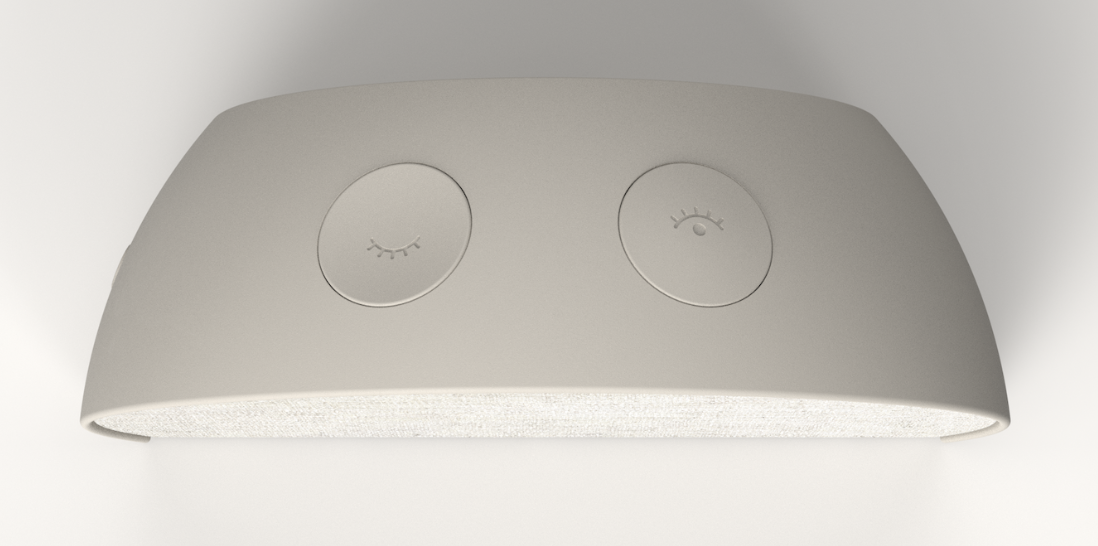
Step 1: Start
You can start your Bedtime Routine by pressing the concave button on the left, the one that resembles a closed eye. You can start your Morning Moment by pressing the convex button on the right, the one that resembles an open eye.
Step 2: Stop
In order to stop the routine that's currently playing, you want to press and hold any button on top of your Restore 2 for at least 3 seconds.
Step 3: Skip a step
You can skip a step in your routine by pressing the respective button (closed eye button for your bedtime routine and the open eye button for your morning routine).This will skip the current step and transition to the next step in your routine. If you do not wish to skip a step, your routine will play each consecutive step automatically as it has been set up to do.
Using your routine from the Hatch Sleep App
Step 1: Star your routine
To start your routine, just tap on the step that you'd like to play! Subsequent steps will still follow.
Step 2: Stop or pause your routine
You can stop the routine or content that's currently playing by tapping the power symbol on the right side of the mini-player at the bottom of the screen. If you just need to pause the routine, tap on the mini player at the bottom of the page, it will expand. Tap on the pause button to pause the content.
Editing Your Routine
Need a change in your routine? It's easy to make adjustments!
Step 1: Connect
Connect to your Restore 2 so you can access the Home page.
Step 2: Tap
Tap on the three dots next to the routine step you would like to edit (if you don't have a step set up previously, you can just tap on the box under Unwind, Sleep, Sunrise Alarm, or Morning Moment; depedning on which optoion you would like to add a step to). If you just need to add a step to a routine that already has one or more steps, tap on the "Add Step" option under the last step of that routine.
Step 3: Make your selection
You can select the sound option, light option and duration for your step!
Step 4: Preview or Save
Tap on the "Preview" option to preview your selection, or tap on "Save" if you are ready to save your new routine!
Pro tip!
Looking to use a different Unwind Routine each night? We make that easy with Unwind Swap! Check out the Swapping Unwind Routines article for more!
How do I set up multiple Unwind Routines?
While healthy sleep habits are built on consistency, we know that your evenings won't always look the same. With our Unwind Swap feature, you can have up to 3 unwind routines that you can quickly swap out on any given evening.
Connect to your Restore 2 and navigate to the Unwind section in the Hatch Sleep app.
Tap on "Manage Routines" From there, you can set up to three Unwind Routine options by tapping on the "Add" button. You will be able to select the sound and light combination that works best for you.
If you are not a Hatch+ subscriber, keep in mind your Unwind sound options will be limited to our Unwind Samples (one step each per routine). Hatch+ members are able to create custom routines to swap (up to five steps per routine).
Swapping one Routine for another
Once your three Unwind steps have been set up, you can select a different routine at any time by tapping on the "Manage Routines" option and swiping through the options. Tap on the "Swap to this Routine" button once you have swiped to the routine you want to use! To set a preset as your Unwind routine for the evening, just scroll between your 3 presets and tap "Set Unwind routine." Tapping the 3 dots will also give you the option to give your routine a custom name.
Still need help? Click on the chat bubble on this page to send us a message!