A Routine will help set you up for success in getting a great night's sleep! It's customizable and will help you carve out time for unwinding, rest, and gentle wake up!
Your Restore 3 has three "types" of routines that you can set up:
- Unwind Routine: The Unwind Routine will help relax your mind and body in preparation for a good night's sleep. You can select sound and light options from our comprehensive library.
- Sleep Routine: Once you are asleep, this routine will help you stay asleep with soothing and restful sound options.
- Alarm: Give yourself a gentle wake up with our alarm options.
Here's all you need to know about how to get started with Routines!
Setting up your routine:
Once you are connected to your Restore 3, you will want to beging to build your routine.
Since this is the first time you have set up your Restore 3, prompts in the app will guide you all along the way!
You will be asked a serise of questions that will help identify your sleep needs. Follow the prompts and answer each question.
After all the questions have been answered, tap on the "See My Results" option to gain some insight on your sleep style as well as get some advice on how to best set up your Restore 3.
Click on the "Next" option to view a customized routine, created with your needs in mind!
Check out the routine (including alarms) we've creted just for you! You can give this routine a try, or change it up! If you would like to edit the routine, scroll down to the "Editing Your Routine" section of this article.
Not your first time setting up a routine?
If you already have a routine set up, but you would like to add additional steps- just tap on the "Add step" option to either the Unwind or Sleep section of your routine (depending on what step you would like the new step to be added to).
If you need to edit the current step of your routine, see the "Editing Your Routine" steps further down in this guide.
Using Your Routine
Using your routine from your Restore 3
Step 1: Start
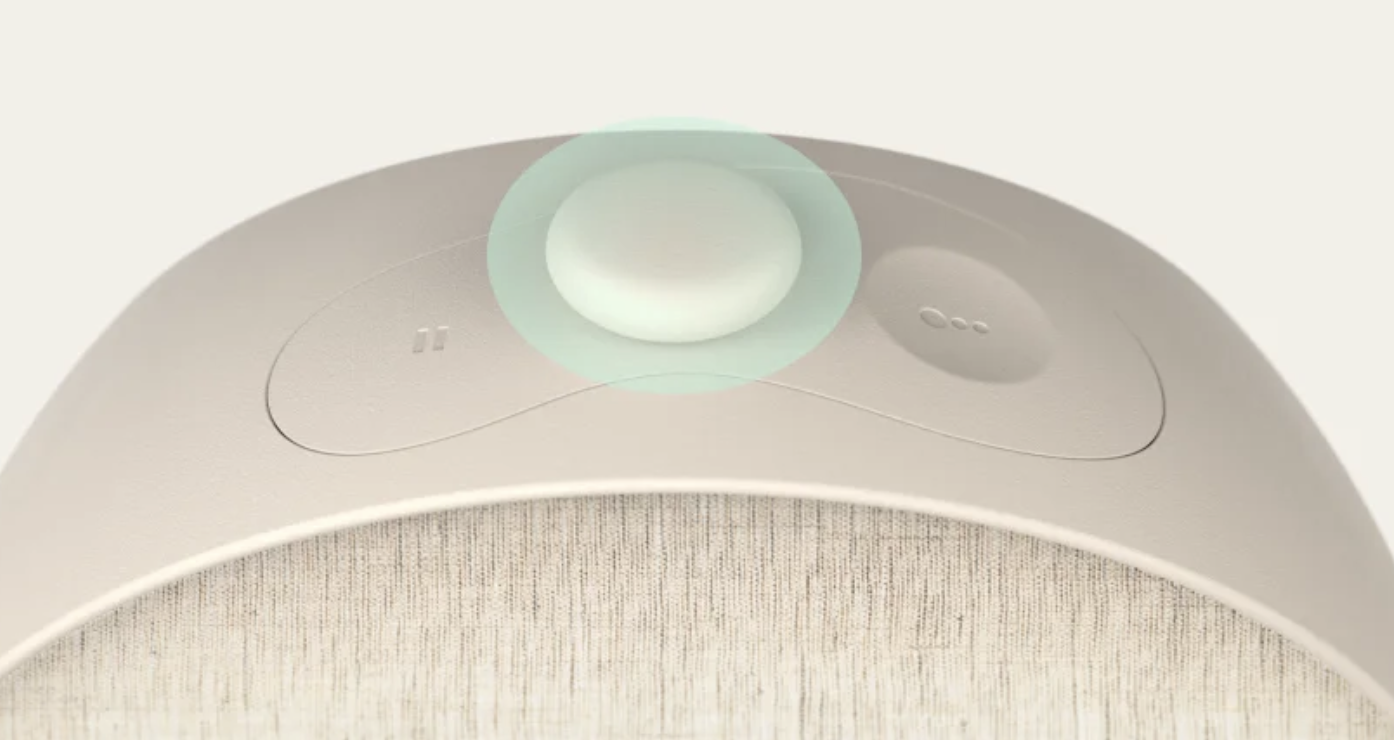
You can start your Bedtime Routine by pressing the big button on the top of your Restore 3.
Step 2: Stop
In order to stop the routine that's currently playing, you want to press and hold the big button.
Step 3: Skip a step
You can skip a step in your routine by pressing the big button.This will skip the current step and transition to the next step in your routine. If you do not wish to skip a step, your routine will play each consecutive step automatically as it has been set up to do.
Need to pause?
Just tap on the pause button (the button with two lines next to the big button) on the top of your Restore 3.
When your Restore 3 is paused, you will see a "pause" symbol on the device until you unpause the device.
Pause Pro tips!
- While you can pause the sound, the light will remain on when the sound is paused
- After one hour, the pause will "time out" and your Restore 3 will shut off
- Any change made to your devices currently playing settings (light or sound), will cause the pause to unpause and will begin playing the newly selected setting
Using your routine from the Hatch Sleep App
Step 1: Star your routine
To start your routine, just tap on the step that you'd like to play! Subsequent steps will still follow.
Step 2: Stop or pause your routine
You can stop the routine or content that's currently playing by tapping the power symbol on the right side of the mini-player at the bottom of the screen. If you just need to pause the routine, tap on the mini player at the bottom of the page, it will expand. Tap on the pause button to pause the content.
Pause Pro tips!
- While you can pause the sound, the light will remain on when the sound is paused
- After one hour, the pause will "time out" and your Restore 3 will shut off
- Any change made to your devices currently playing settings (light or sound), will cause the pause to unpause and will begin playing the newly selected setting
**For more information on the pause feature, check out our Pausing your Restore 3 article!
Editing Your Routine
Need a change in your routine? It's easy to make adjustments!
Step 1: Connect
Connect to your Restore 3 so you can access the Home page.
Step 2: Tap
Tap on the three dots next to the routine step you would like to edit (if you don't have a step set up previously, you can just tap on the box under Unwind, Sleep, Sunrise Alarm, or Morning Moment; depending on which option you would like to add a step to). If you just need to add a step to a routine that already has one or more steps, tap on the "Add Step" option under the last step of that routine.
Step 3: Make your selection
You can select the sound option, light option and duration for your step!
Step 4: Preview or Save
Tap on the "Preview" option to preview your selection, or tap on "Save" if you are ready to save your new routine!
Check out our YouTube video on how to edit your routines for more!
How do I set up multiple Unwind Routines?
Connect to your Restore 3 and navigate to the Unwind section in the Hatch Sleep app.
Tap on "Manage Routines" From there, you can set up to three Unwind Routine options by tapping on the "Add" button. You will be able to select the sound and light combination that works best for you (if you are not a Hatch+ subscriber, keep in mind your Unwind sound options will be limited- see the What do I get with Hatch+? What do I get for free? article for more).
Ready to swap?
Once your three Unwind steps have been set up, you can select a different routine at any time by tapping on the "Manage Routines" option and swiping through the options. Tap on the "Swap to this Routine" button once you have swiped to the routine you want to use!
You can also swap to a different routine right from your Restore 3! Just tap on the "Swap" button on the top of your Restore 3 to move to a different Unwind Routine for the evening.
Still need help? Click on the chat bubble on this page to send us a message!